

Pick what you need help with and we'll show you, step by step, where to tap.
Usually the app doesn't have access to the camera. Here's how to turn it on:
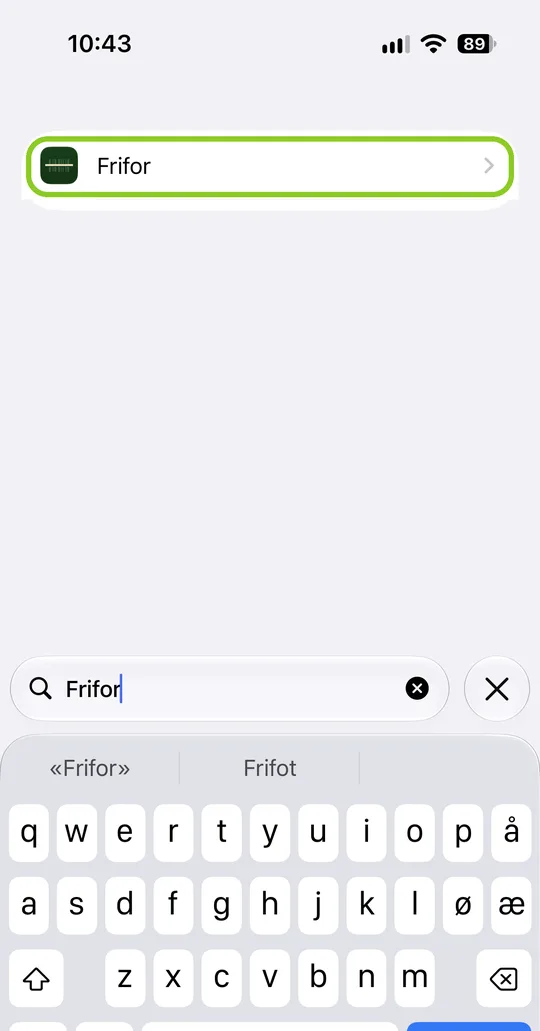
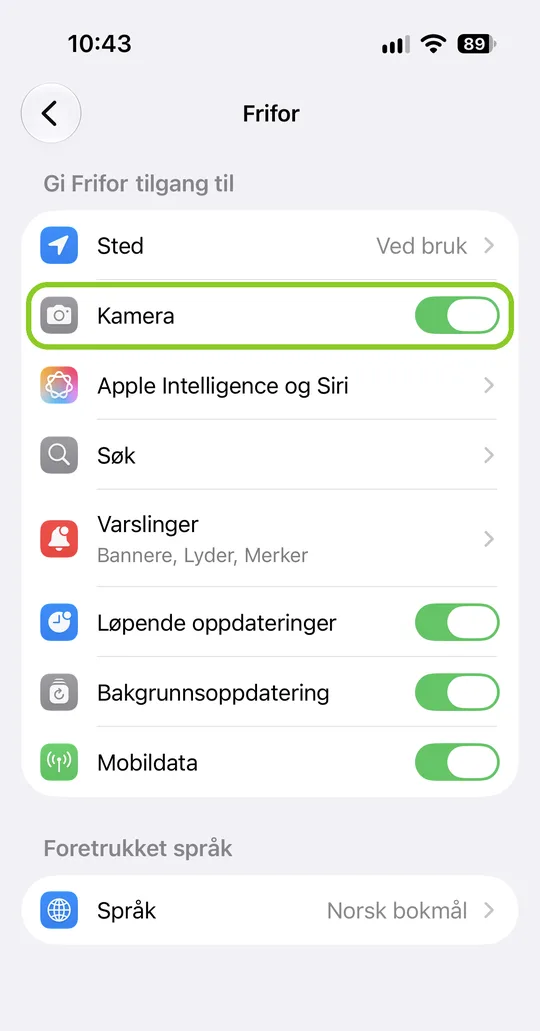
Still not working? Hold the phone 10–20 cm from the barcode, in good light. You can also tap “Enter barcode manually”.
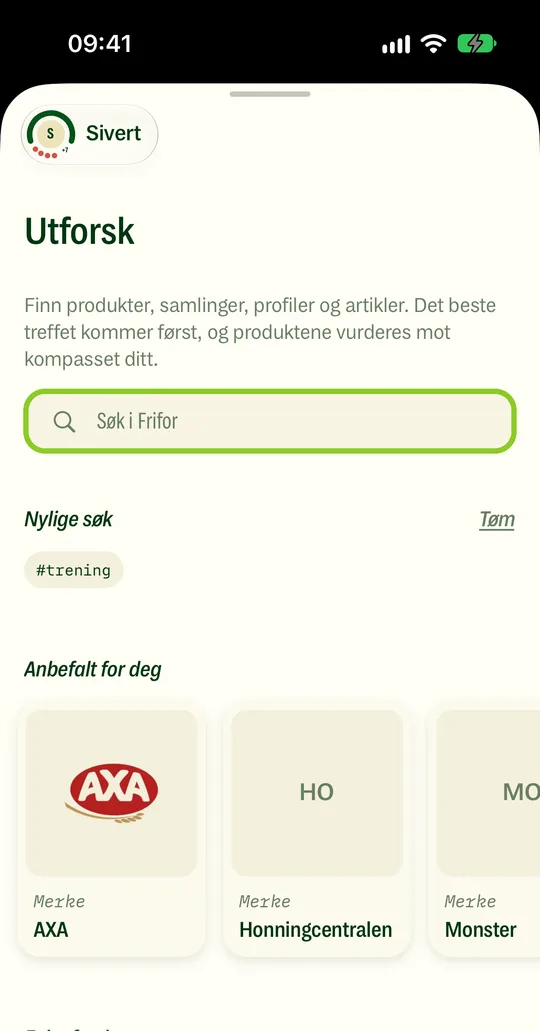
Loose and fresh produce often has no barcode.
The scanner fetches the product online, so you need mobile data or Wi-Fi.
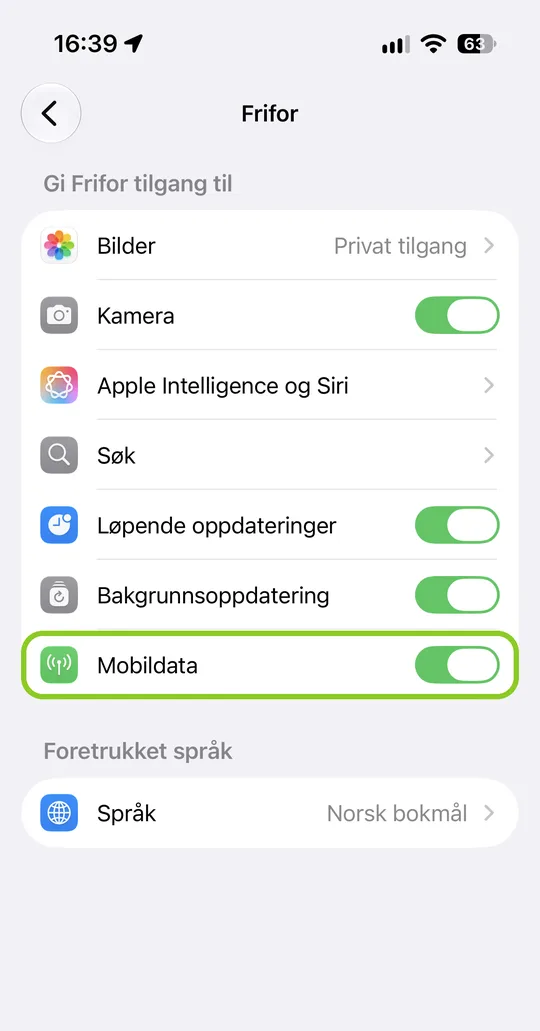
Many stores have poor signal. Try moving closer to the entrance.
If it says “We couldn't find this product”, you can add it yourself:
We read the photos and add the product. It can take a little while before it shows up.
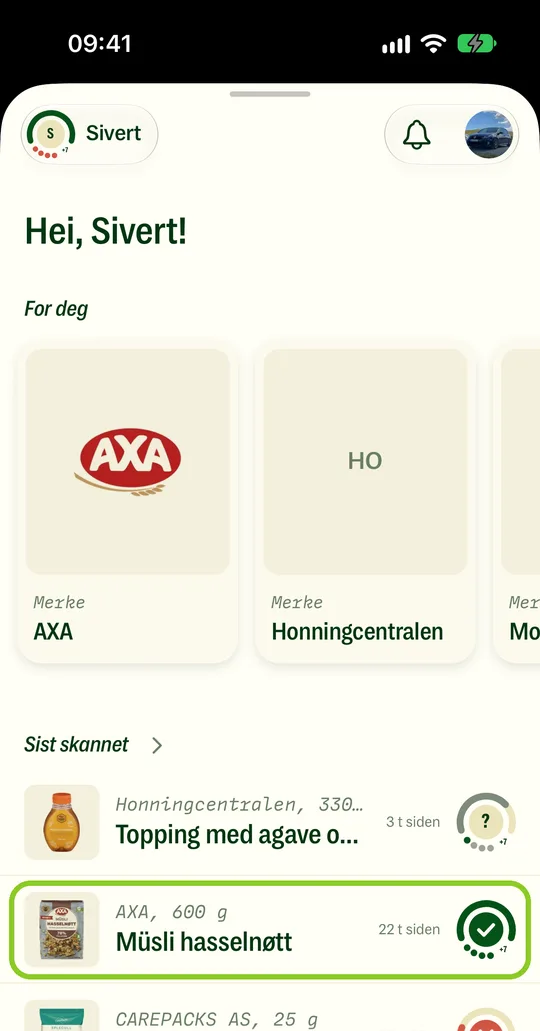
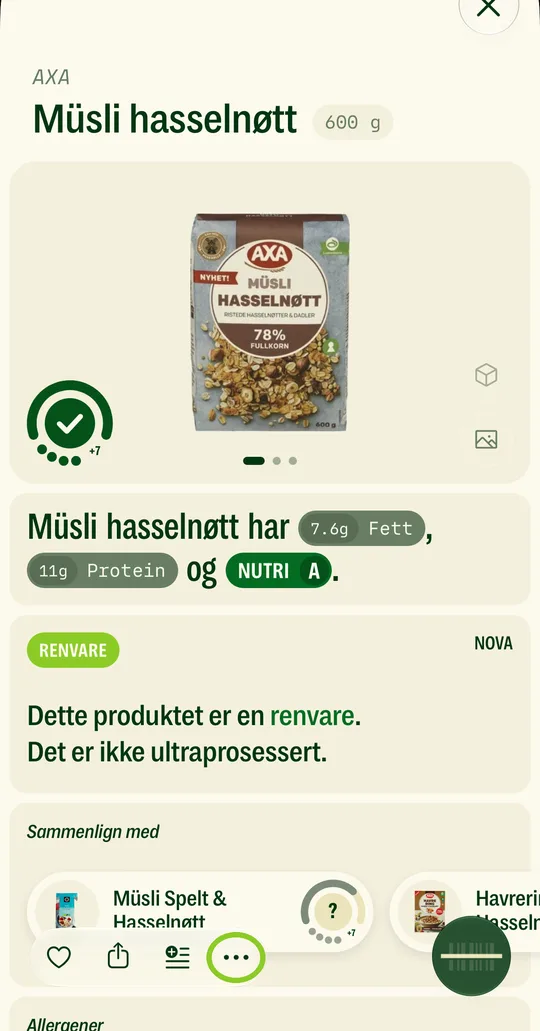
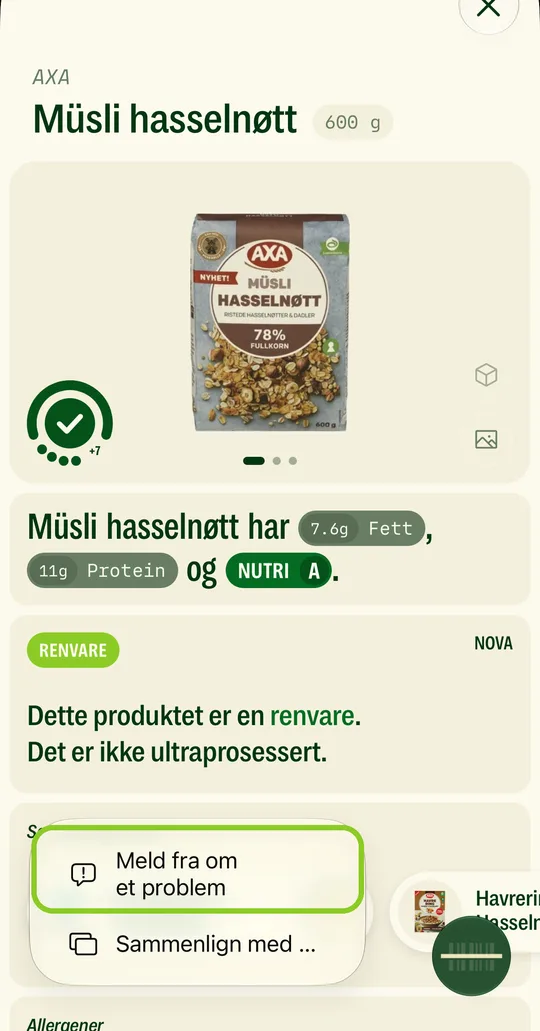
If you have an allergy, always check the label on the pack. The label is what counts.
The label on the pack is what counts. Always check it if you have an allergy.
The rating is the average of what users have given the product, from 1 to 10.
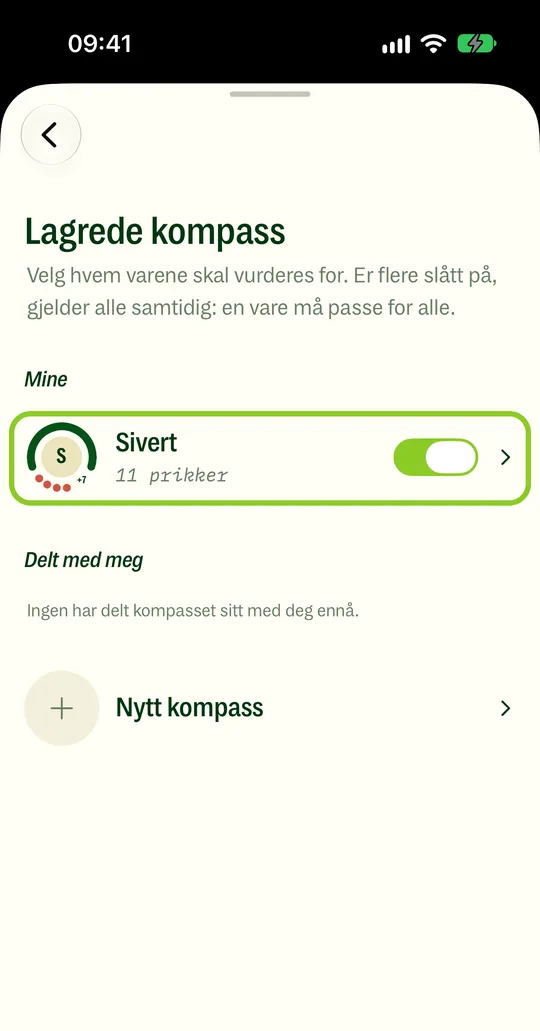
The compass shows how the product fits what you've chosen: what you want more of, less of and never.

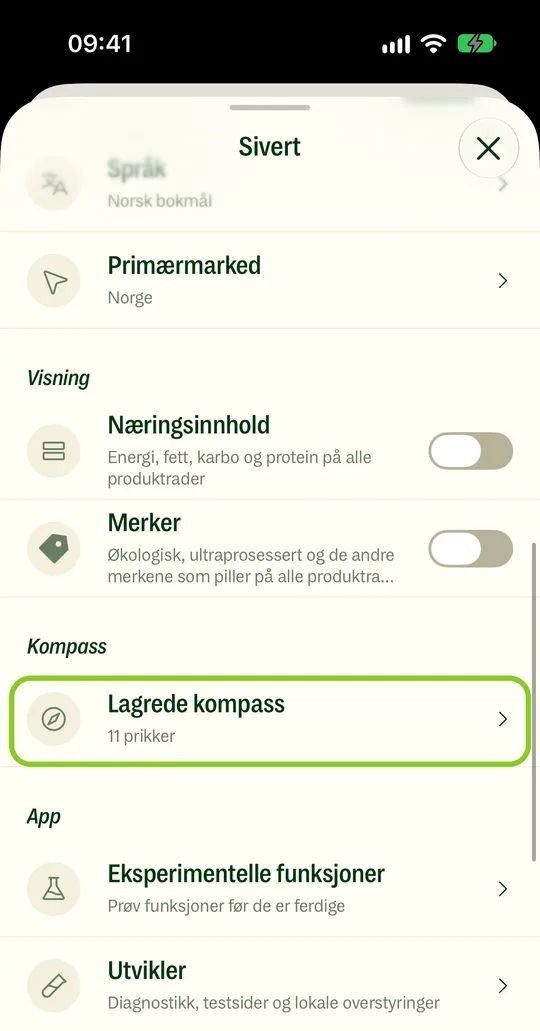
If it still crashes, email us at mail@frifor.app with your phone model and what you were doing.
If it still won't load, email us at mail@frifor.app.
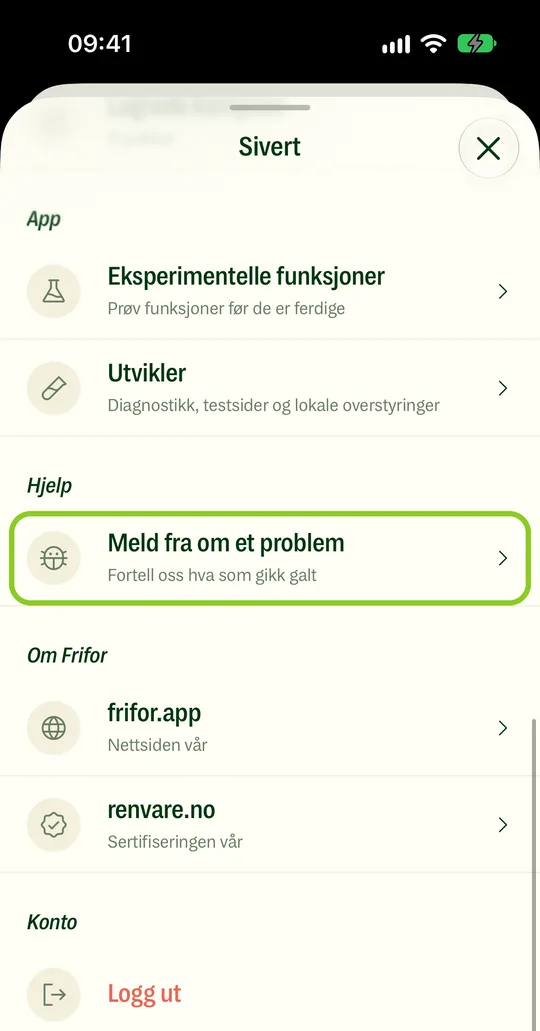
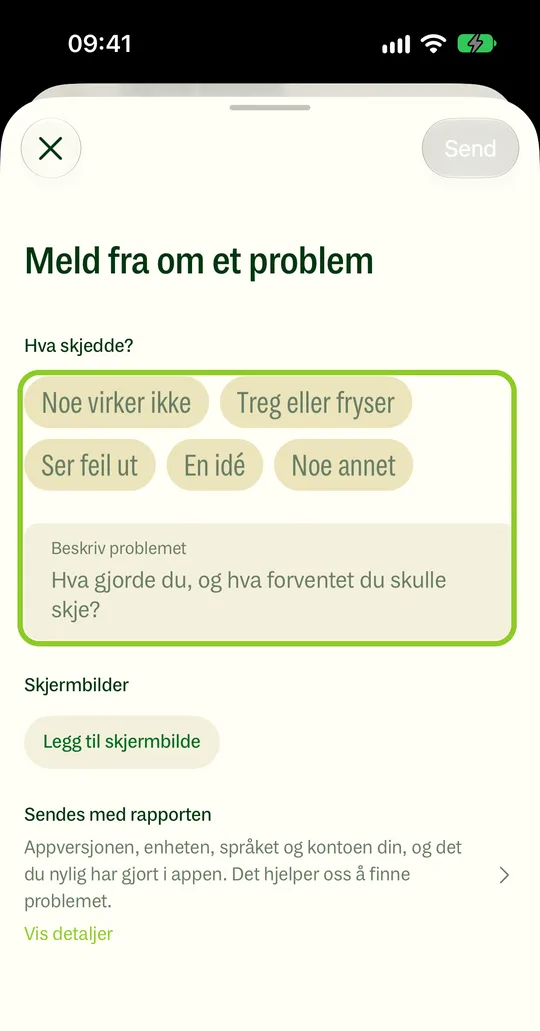
Use a passkey. Then you sign in with your face, your finger or your screen lock.
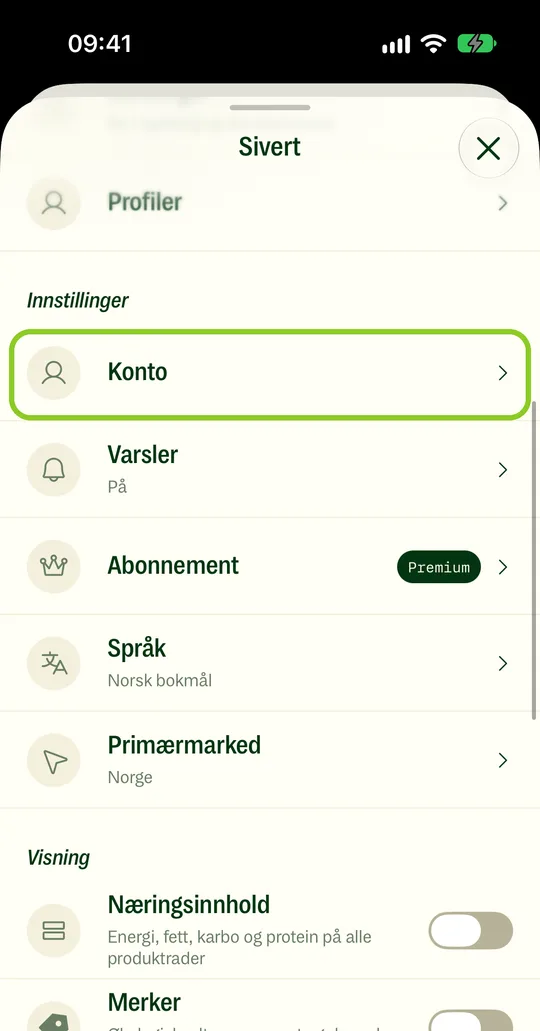
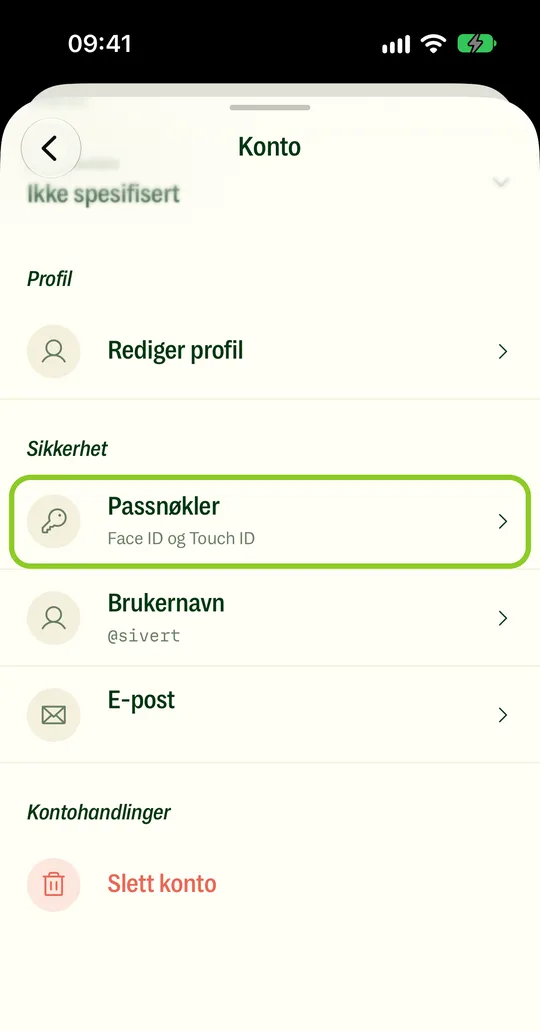
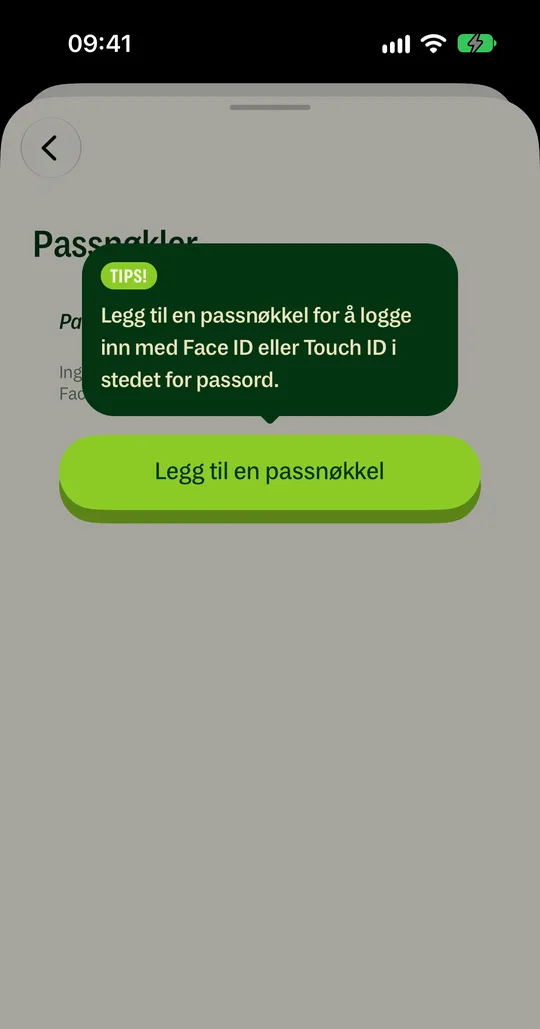
Your account, collections and Premium are still there.
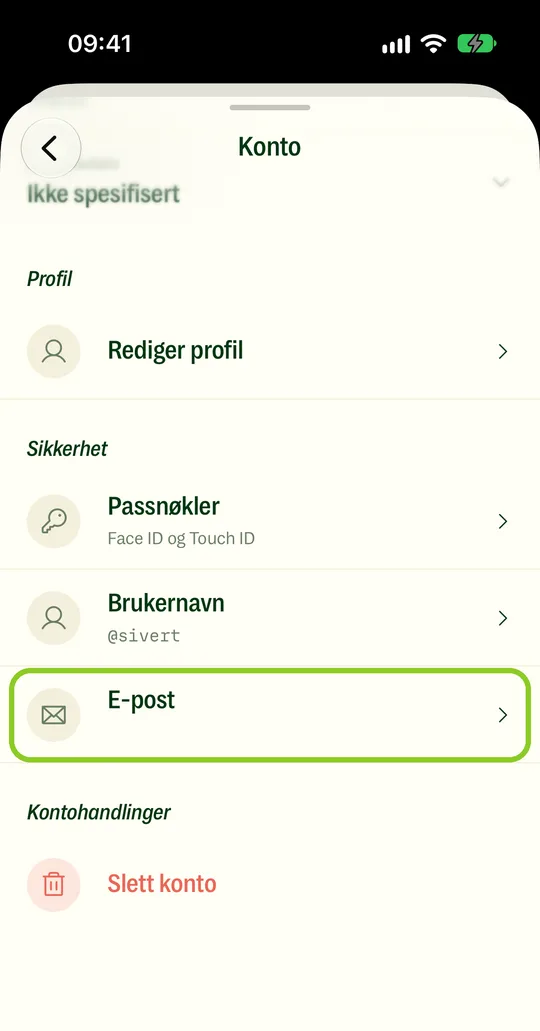
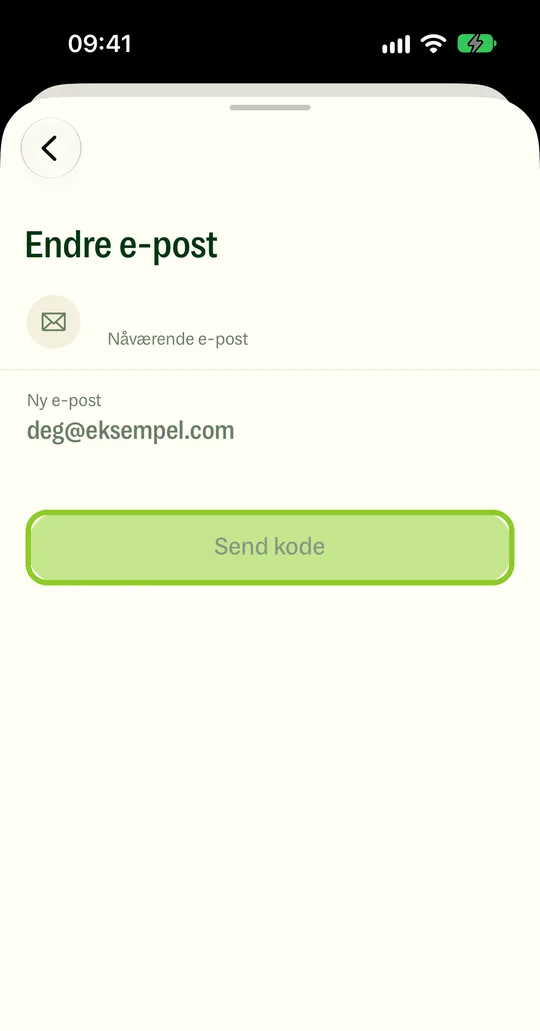
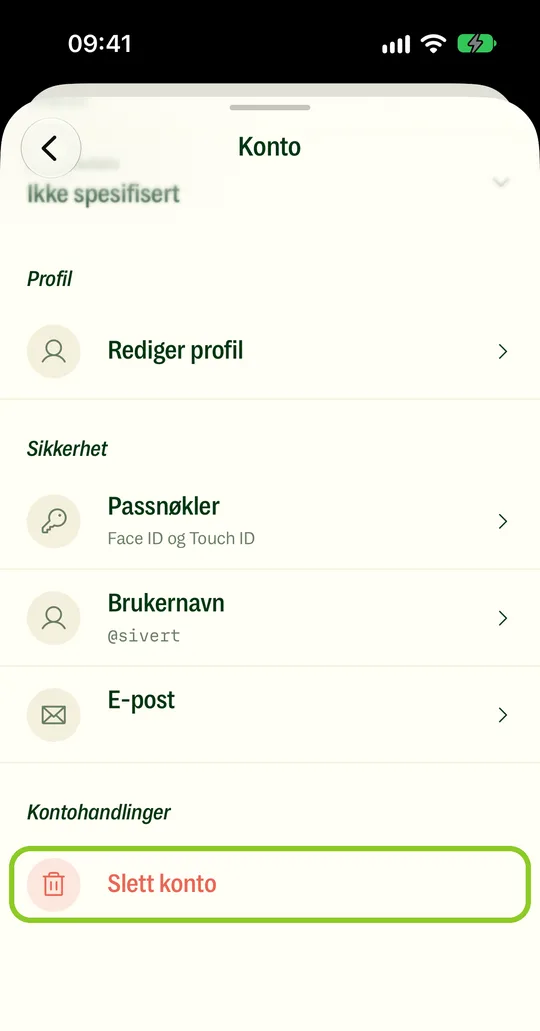
If you have Premium through the App Store or Google Play, cancel it there too.
If they still don't show, email us at mail@frifor.app.
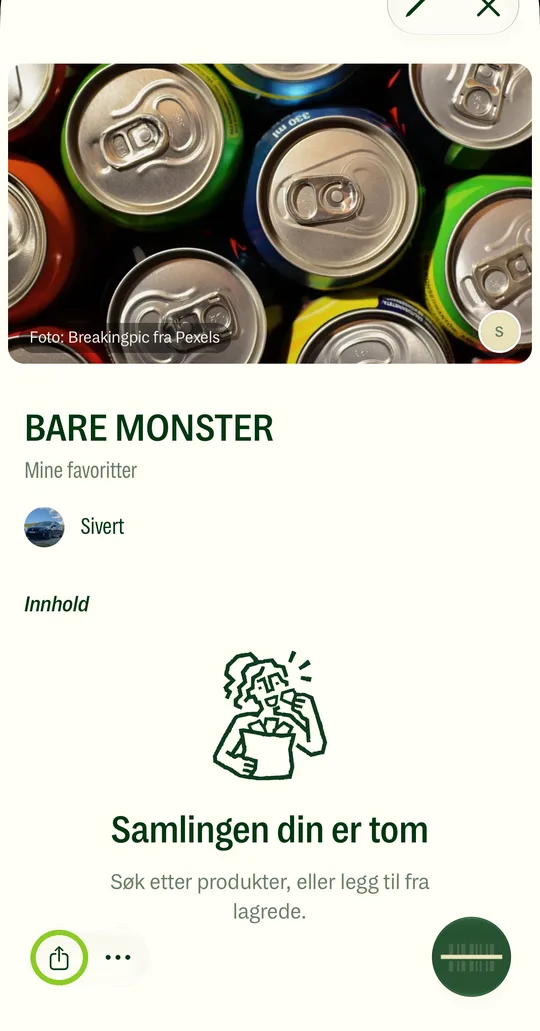
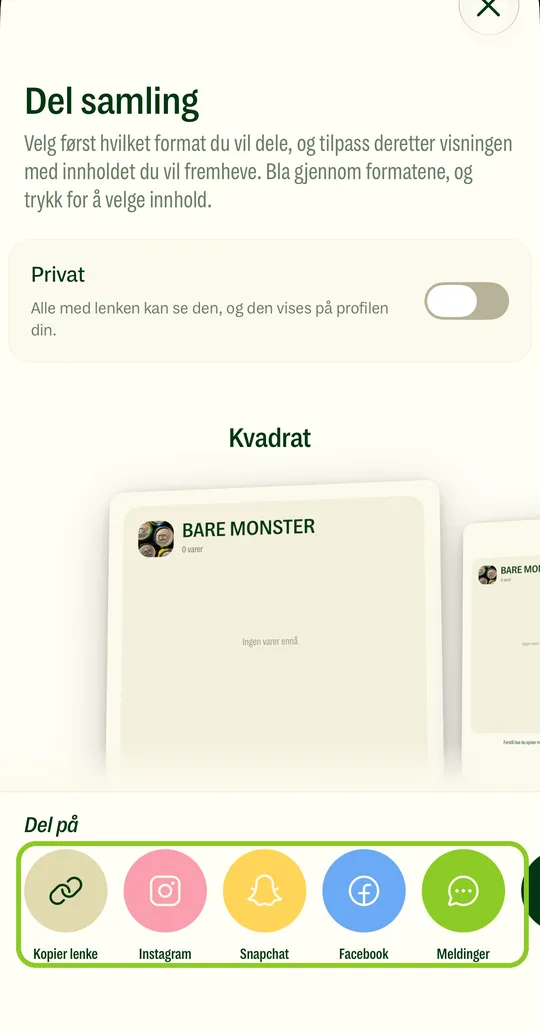
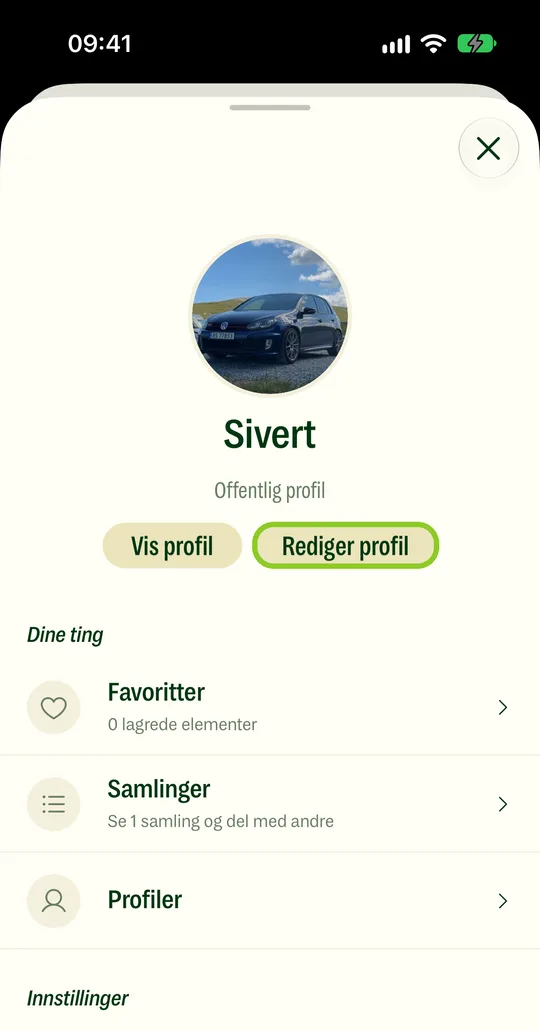
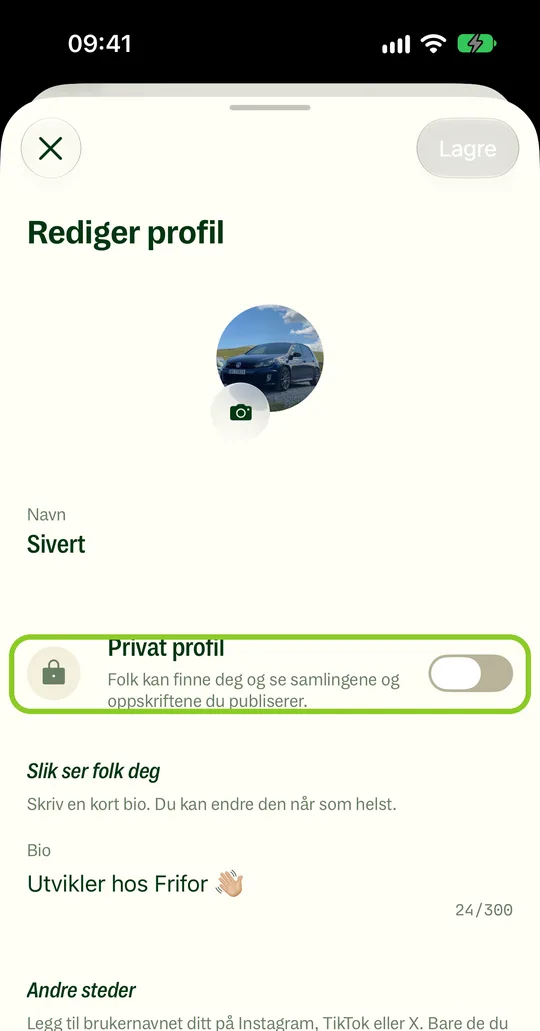
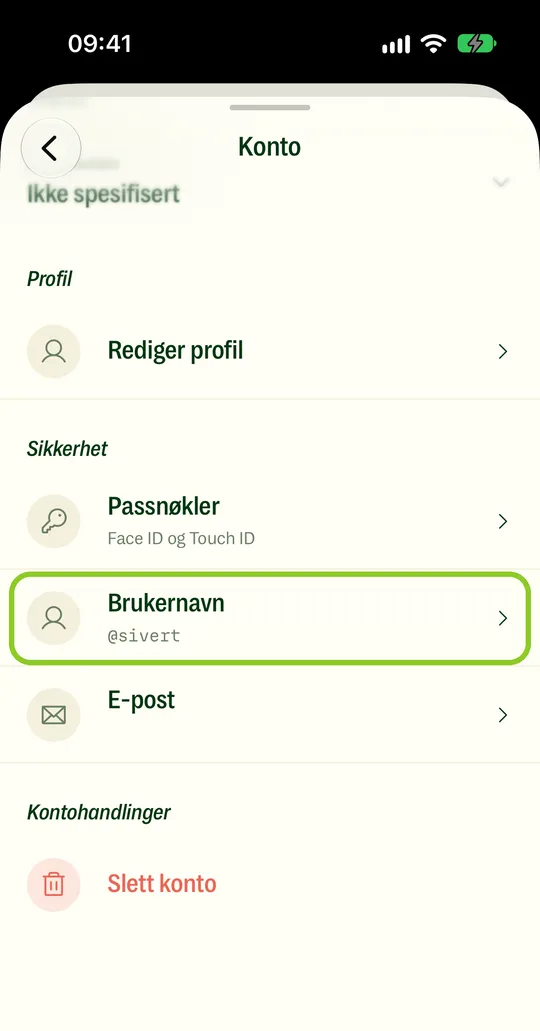
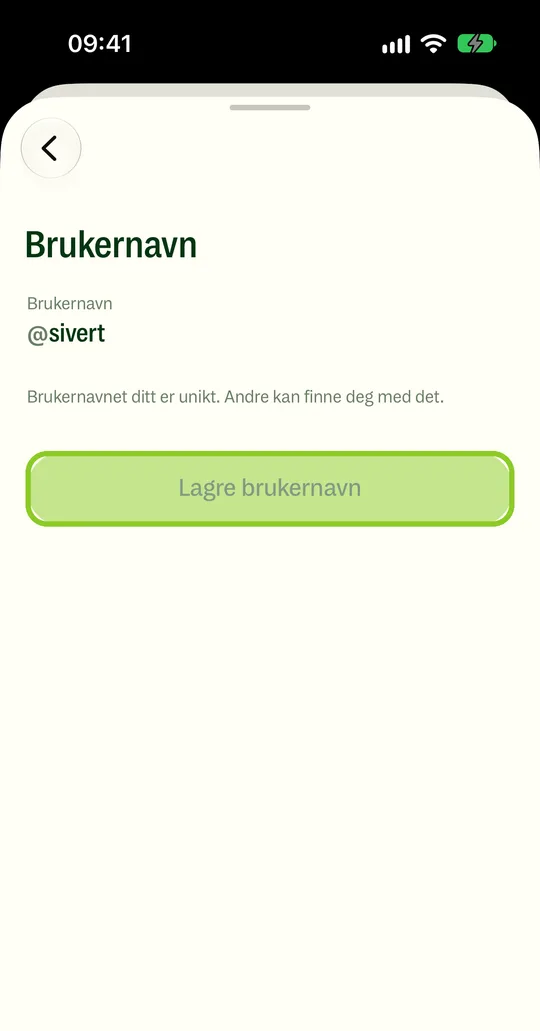
If your profile is public, anyone can see your ratings on it. To hide them, make your profile private.
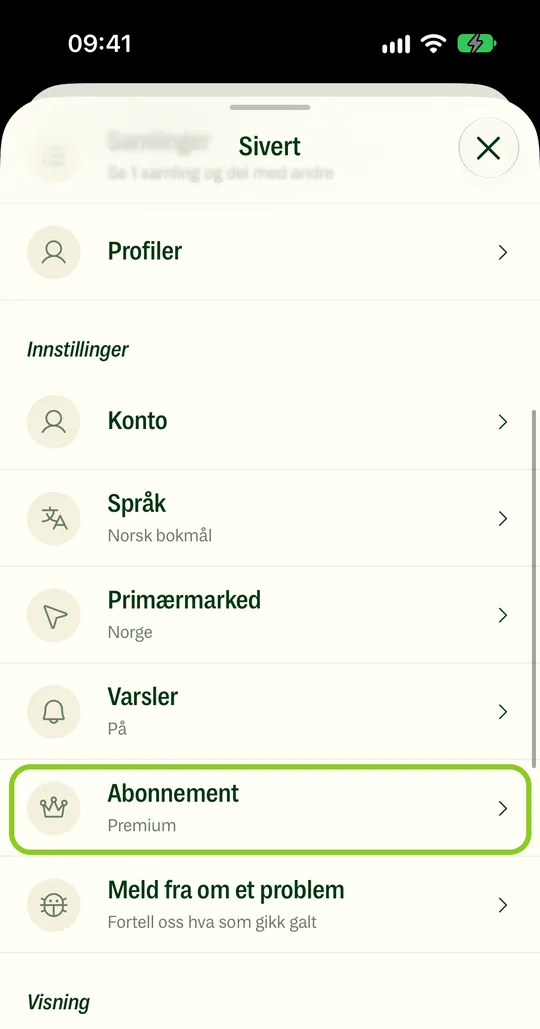
Bought Premium on frifor.app? Cancel it there: sign in at frifor.app/premium and tap “Manage subscription”. Premium keeps working until the end of the period you've paid for.
If you bought it on frifor.app, email us at mail@frifor.app.
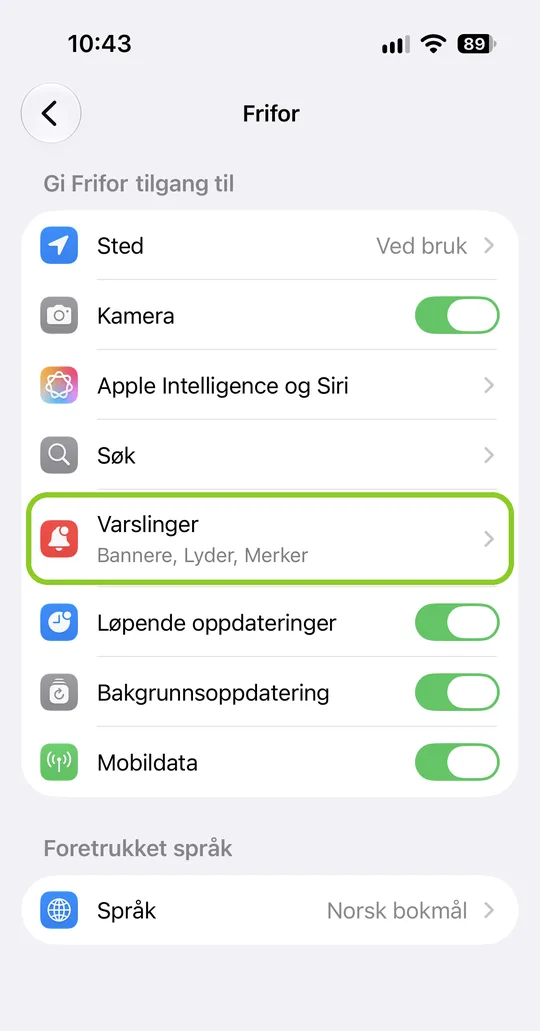
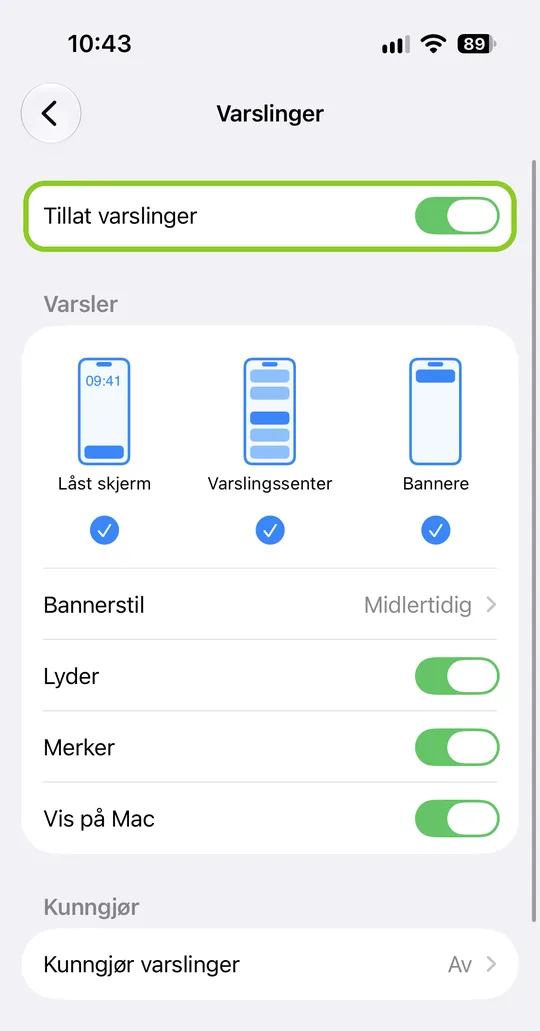
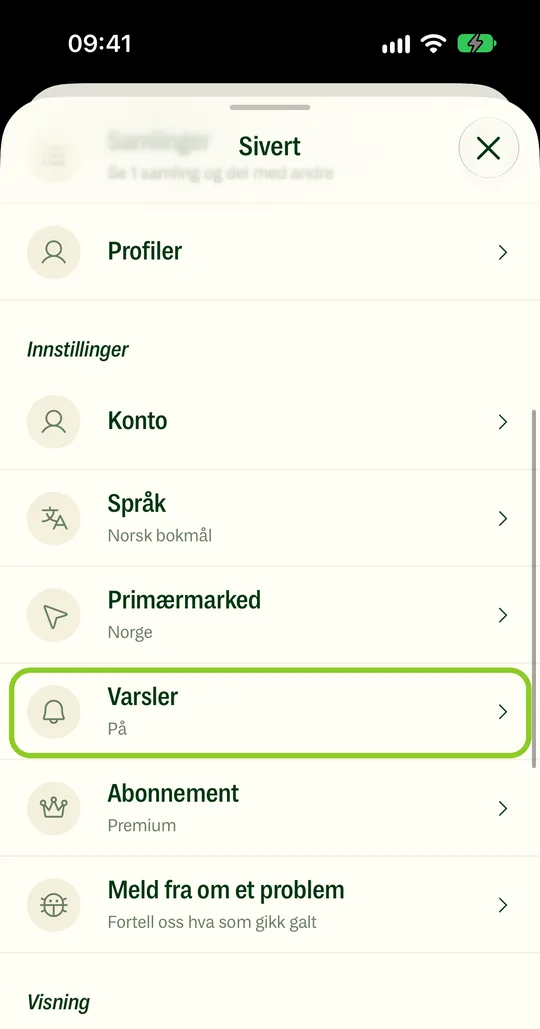
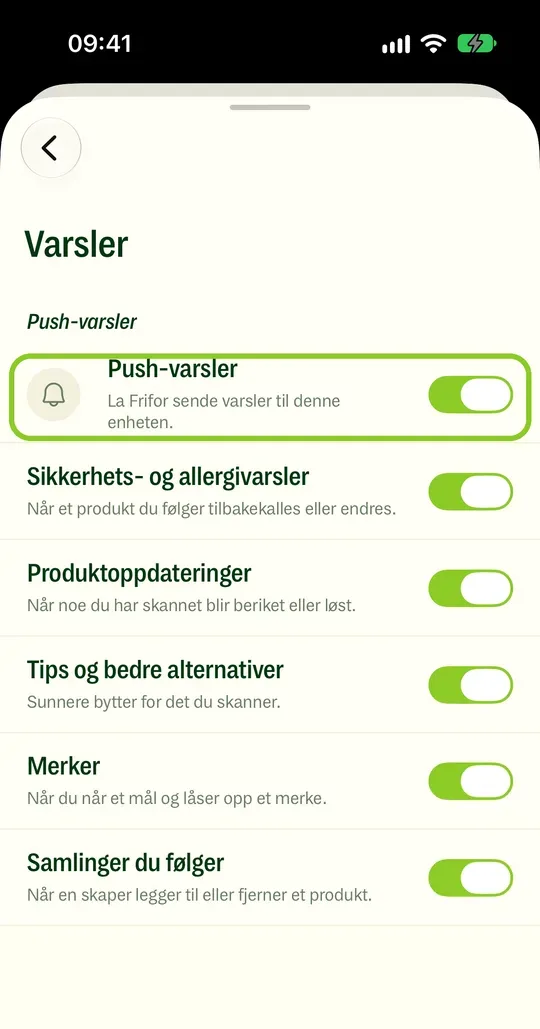
Focus or Do Not Disturb can hold notifications back.
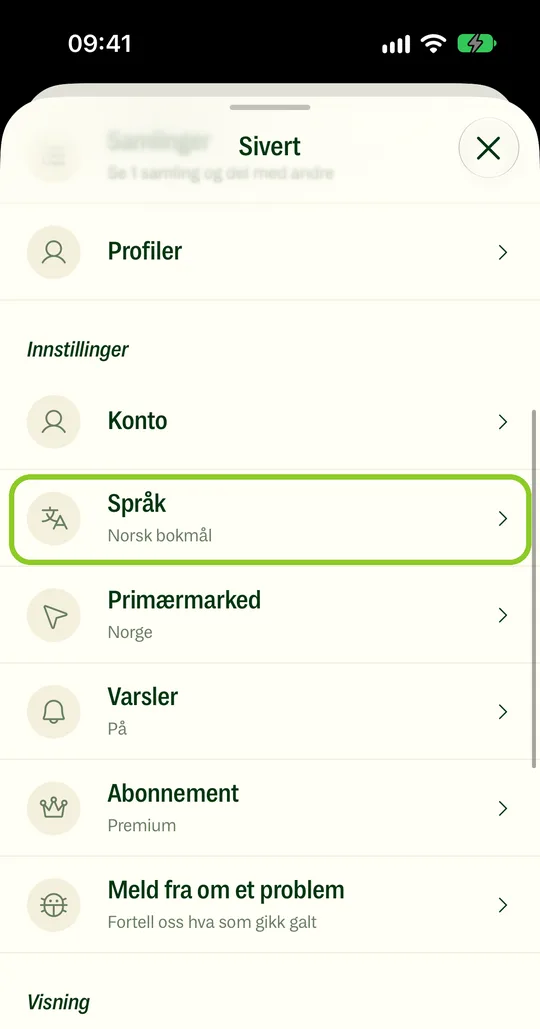
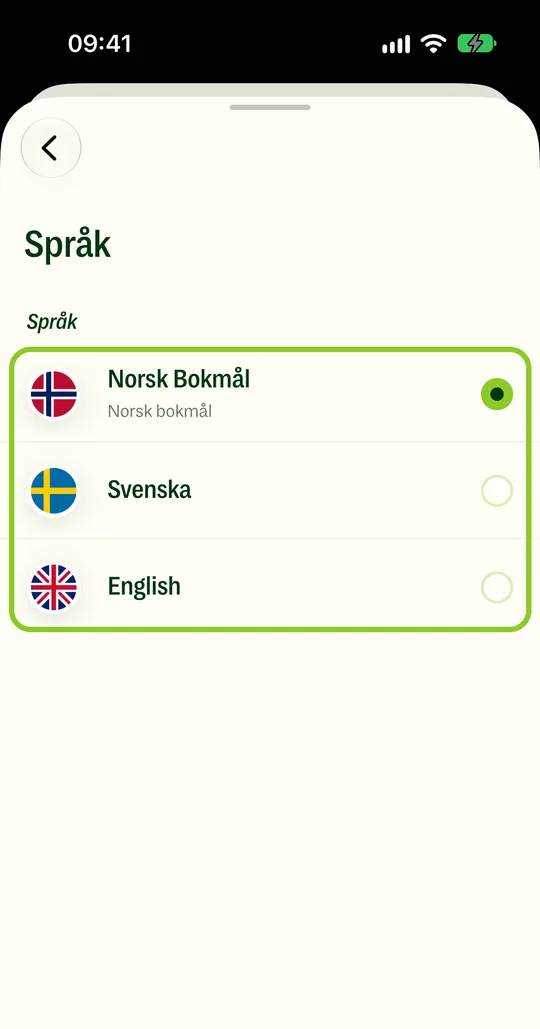
Your primary market is the country you shop in most.
Report it in the app under Me › Help, or send us an email. Tell us which phone you have.
Send emailmail@frifor.app